|
Editing an Existing Catalogue Item |
Previous Top Next |
Overview
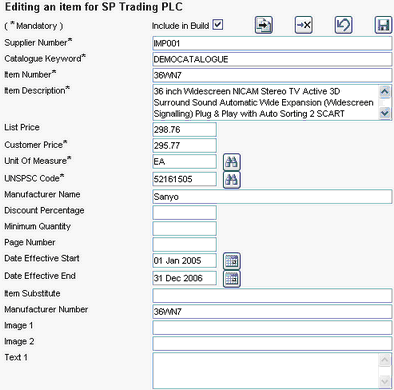
Once an item has been selected in the catalogue content table, its data fields can be edited. Just replace or delete the existing information as required.
 Once all data fields have been edited, click
  .
.
If any of the fields within the catalogue are populated with invalid data the item will not be saved and the field(s) containing the validation error will be highlighted in red.

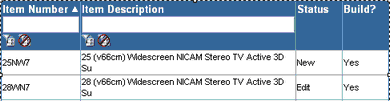
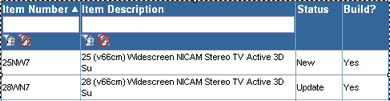
The edited catalogue item will now be listed in the catalogue content table with a Status of 'Edit' or 'Update' (if a catalogue item has not been included within a previous catalogue build it will be given a status of Edit, if it has been included within a catalogue build it will be given a status of Update).
If the edits made to the catalogue item need to be cancelled, click  prior to saving the edit.
If required, it is possible to set the item being edited to be excluded from the catalogue build. An example of when this would be used would be for when a product may be withdrawn from sale for a limited period of time. A catalogue item can be excluded from the catalogue build by removing the tick in the  field and saving the item.
Excluding a catalogue item from the build will set the Build status within the catalogue content table to No.
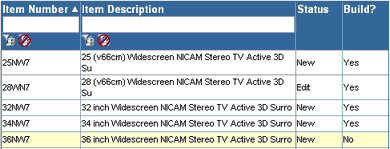
If at a later date the catalogue item needs to be re-included into the catalogue build, select the item and enter a tick into the  field.